License Management
 Security and navigation
PERMISSIONS Security level with Admin permission with access to Resources/Users (HR).
NAVIGATION Left Navigation Menu > Admin > Organization Settings & Users > Resources/Users (HR) > Resources/Users (HR) > License Management
NAVIGATION Left Navigation Menu > Admin > Features & Settings > Co-managed Help Desk > Co-managing Users > License Management
NAVIGATION Left Navigation Menu > Admin > Features & Settings > Co-managed Help Desk > Un-mapped Co-managing Users > License Management
Overview
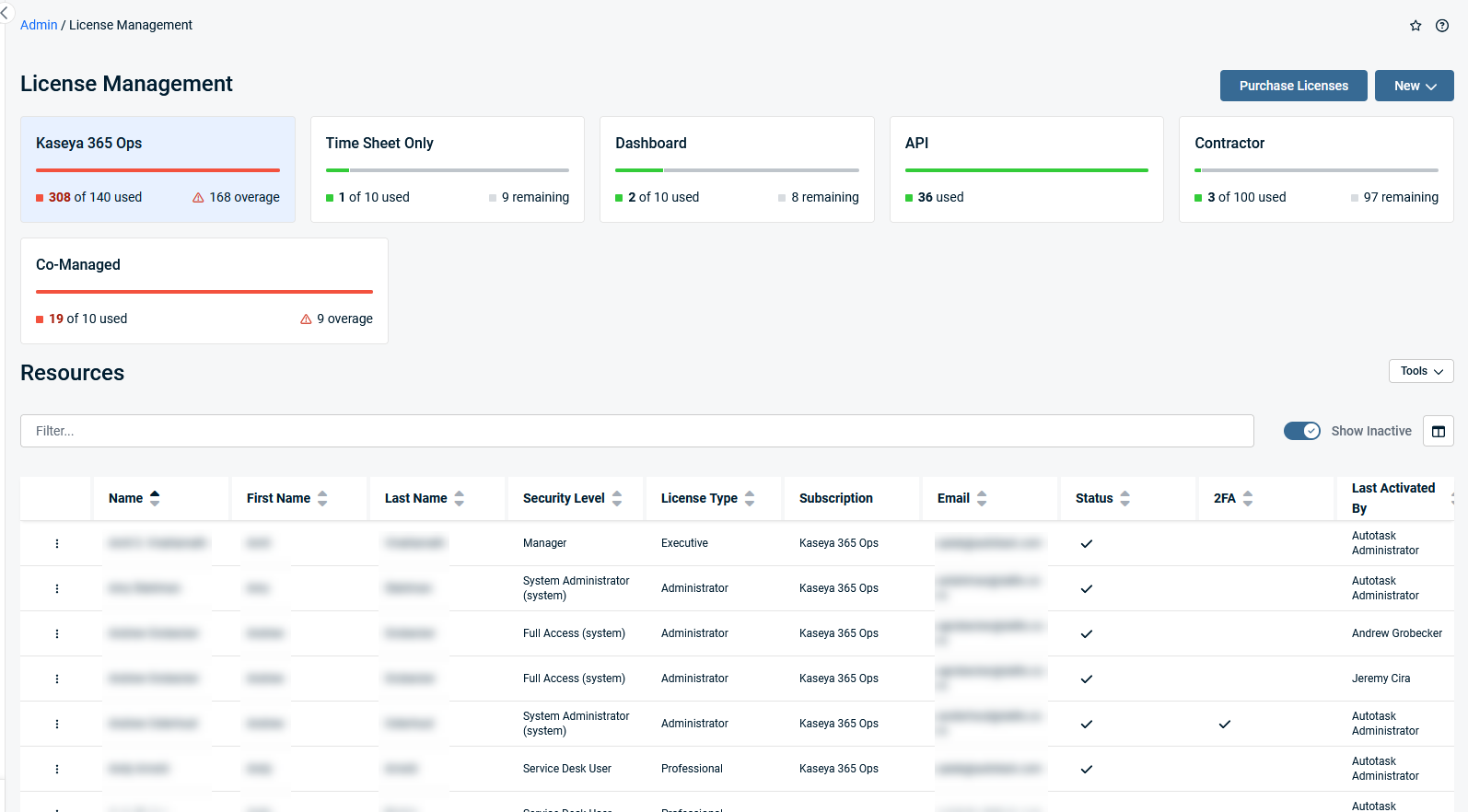
The License Management page provides a centralized location to view and manage all license types. This enhanced page is a part of the KaseyaOne License Management initiative, merging the previous Resource Management and License Management pages into a single, streamlined experience. Refer to What is a License Type?.
License Management tiles
At the top of the page, you’ll see tiles representing each license type currently in use in your Autotask instance.
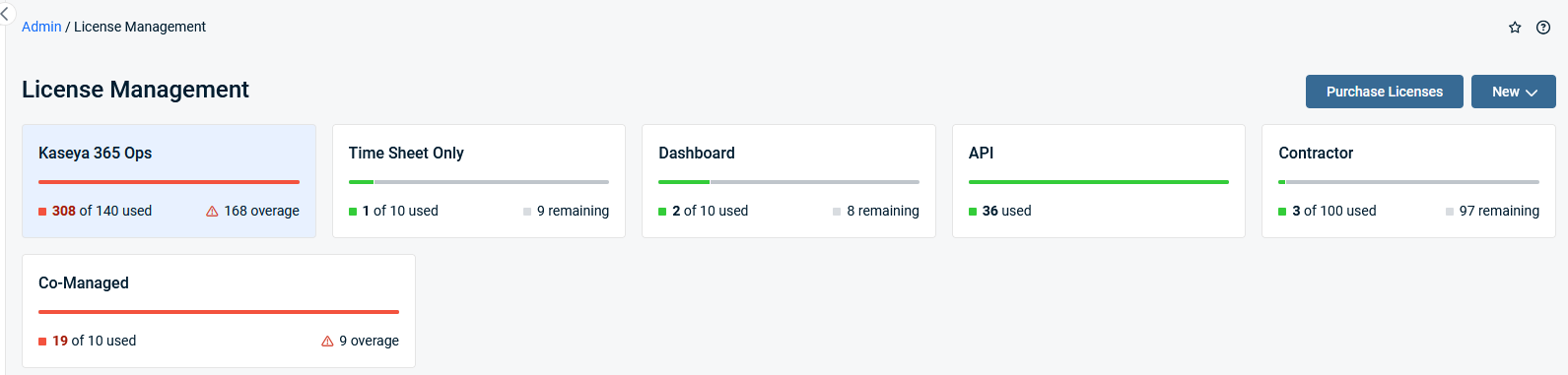
NOTE Click a tile to filter the table to display only the associated users. Refer to Resources table.
Tiles are shown only for license types relevant to your organization (e.g., Resource, Co-managed).
Each tile displays the total number of active, paid, and complimentary licenses for that type.
The numbers reflect your current license usage, helping you monitor compliance and plan for growth.
NOTE The API tile is always visible, even if you have no API users.
Contractual minimum quantity
If your Autotask instance uses contractual minimum quantities, you’ll see your current minimum license commitment. The tiles show if your current usage exceeds your minimum quantities, so you can anticipate billing for overages. Refer to Committed minimum quantity billing FAQs for more information.
Resources table
The Resources table displays detailed information for each licensed user in your Autotask environment.
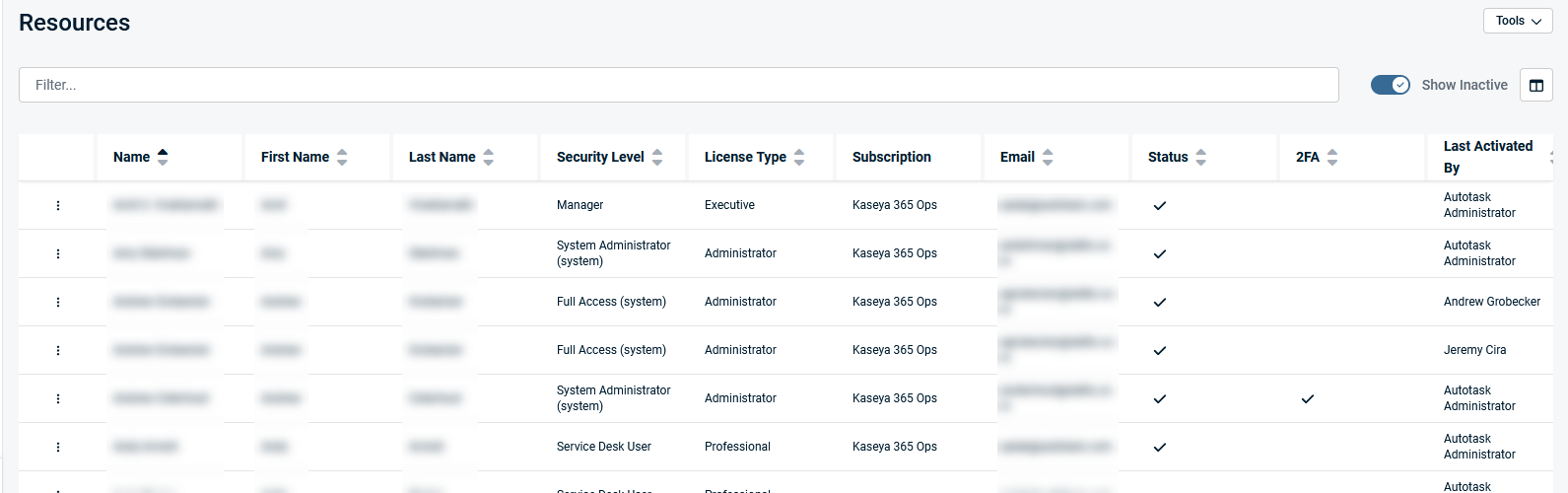
Table actions
Click inside the Filter... search bar to narrow results.
Toggle the  Show Inactive icon to show inactive users.
Click the column chooser icon to customize column visibility.
Open the context menu  to edit, activate/inactivate, copy, or email the selected user.
NOTE API users cannot be copied.
IMPORTANT A resource cannot be activated from this page if it would exceed the number of available licenses.
Purchase Licenses
IMPORTANT Purchasing additional licenses requires Kaseya Store purchasing rights. Refer to Kaseya Store - Shop for more information.
To purchase additional licenses via the Kaseya Store:
-
Navigate to Left Navigation Menu > Admin > Organization Settings & Users > Resources/Users (HR) > Resources/Users (HR) > License Management > Purchase Licenses.

-
If not already logged in, login to KaseyaOne.
-
From the Purchases menu, click Subscriptions.

-
Locate and click the module that you want to purchase additional licenses for.
-
Add the necessary selections to the cart and complete the purchase.
New...
The New button on the page is your primary tool for adding new licensed users to your Autotask environment. With the recent enhancements, this button now supports the creation of resources, co-managed, and API user accounts.
For more information about adding a resource, refer to Adding, editing, or copying a resource.
For more information about adding a co-managing user, refer to Adding or editing a co-managing user.
For more information about adding an API user, refer to Adding or editing an API user.
Frequently asked questions
Q: What happens if I exceed my contractual minimum quantity (CMQ)?
A: You can continue to add users as needed. Overage is tracked and billed monthly, but users are not automatically deactivated.
Q: How do I purchase more licenses?
A: Use the “Purchase Licenses” button (if enabled) to access the Kaseya Store and add licenses as needed. Refer to Purchase Licenses.
Q: Can I manage both Resources and Co-managed Users here?
A: Yes. The table merges both user types for unified management. Refer to Resources table.
Q: How do I add a new user?
A: Use the New button at the top of the License Management page to create a new resource or co-managed user. Refer to New....
Q: Can I customize the new user creation form?
A: No, you cannot customize the user creation form on the License Management page.
Q: What is Contractual Minimum Quantity (CMQ) and how does it affect my licenses?
A: CMQ is the minimum number of licenses you commit to for the duration of your contract. You can add more users above this minimum as needed (flex spend), and any usage above the CMQ is tracked as overage for billing at the end of each month. The CMQ is set at contract renewal or when you switch from high watermark pricing. Refer to Committed minimum quantity billing FAQs for more information.
Q:Will users be deactivated if I go over my license count?
A: No. Users will not be automatically deactivated if you exceed your contractual minimum. Overage is tracked for billing, but user access is not restricted.


